


 Link label

How to Improve Posture While Working on a Laptop
Table of Contents
- Why Laptop Posture Matters for Your Health
- How to Set Up an Ergonomic Workstation
- Ergonomic Laptop Setup Tips for Daily Work
- Stretches for Desk Workers
- Posture Correction Tools and Support
- Mobile and Travel Ergonomics
- Common Mistakes to Avoid
- Frequently Asked Questions
Last Updated: September 29, 2026
Why Laptop Posture Matters for Your Health
Poor posture while working on a laptop damages your spine and creates chronic pain. Most remote workers develop forward head posture without realizing it, and by the time pain appears, months of muscle strain have accumulated.
How to improve posture while working on a laptop means setting up your workspace so good posture feels natural. Bad positioning forces muscles to work overtime, leading to fatigue, tension headaches, and repetitive strain injury.
Small adjustments make a huge difference. Small adjustments make a huge difference.
How to Set Up an Ergonomic Workstation
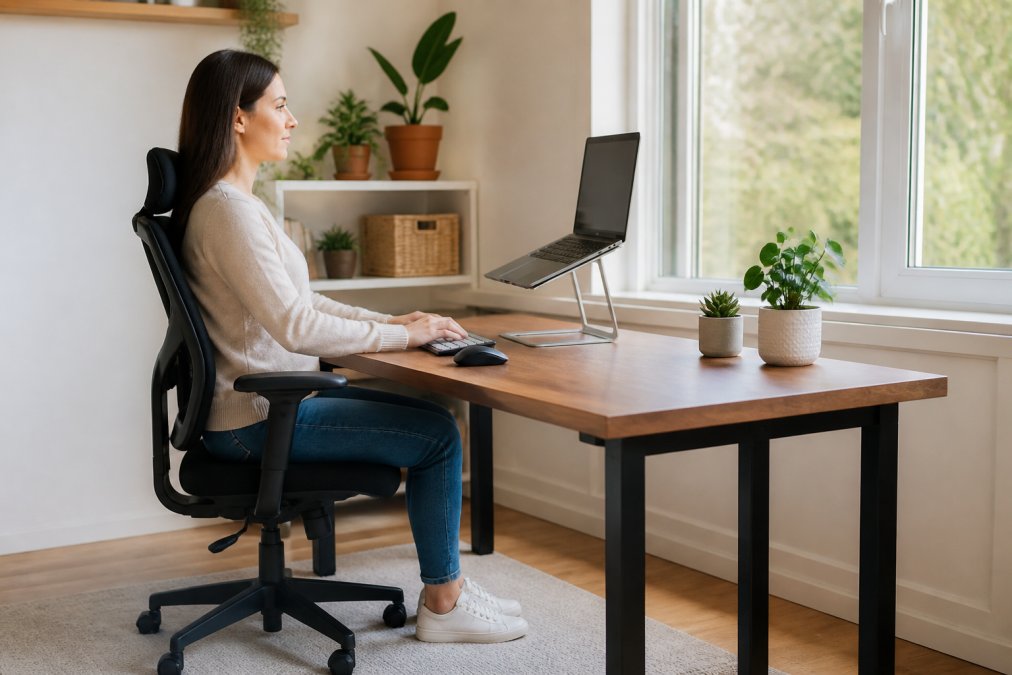
An ergonomic workstation keeps your body in neutral spine position without effort, shoulders relaxed, neck unstrained, wrists straight. This is the foundation for how to improve posture while working on a laptop.
Adjusting Chair Height and Lumbar Support
Your chair is the anchor of your entire setup. Sit with feet flat on the floor, knees bent at 90 degrees, thighs parallel to the ground. If feet dangle, add a footrest. If knees are higher than hips, lower the chair.
Lumbar support is critical. Your lower back has a natural curve (lordosis) that flattens when you slouch, leading to pain over time.
Look for a chair with built-in lumbar support that curves inward at the lower back. If your current chair lacks this, a posture corrector can provide the support your lower back needs. The Posture Corrector Back Brace from thewellbeingshop.com ($37.98) is designed specifically to support proper spinal alignment and reduce slouching. It's adjustable for different body types and breathable enough for all-day wear.
Positioning Your Screen at Eye Level
Your screen height determines whether your neck stays neutral or leans forward. Eyes should look straight ahead at the top third of your screen to keep your cervical spine neutral.
Sit with arm extended, fingertips should almost touch the screen (roughly 20-26 inches away). Too close strains eyes; too far forces forward lean.
If your laptop screen is too low, use a laptop riser. Most laptops sit 4-6 inches below eye level when placed on a desk. A riser fixes this in seconds. Your neck will thank you immediately.
Elbow and Wrist Positioning
Elbows should rest at 90 degrees when hands touch the keyboard. If above or below 90 degrees, adjust desk height to prevent shoulder tension.
Wrists should stay straight while typing, bent wrists create repetitive strain. Use a keyboard tray if your desk is too high, or an external keyboard for better hand positioning.
Foot Placement and Support
Both feet should rest flat on the floor or footrest, no crossing legs or dangling feet. This distributes weight evenly and stabilizes your pelvis. A footrest is essential if feet don't reach the floor.
Ergonomic Laptop Setup Tips for Daily Work
Knowing the theory is one thing. Actually doing it every day is another. Here's what makes the difference between setups that work and ones people abandon.
Using External Keyboards and Mice
External keyboards separate hands from laptop, allowing screen positioning at eye level. They eliminate wrist bending, shoulder rounding, and forward head lean that laptop keyboards cause.
Mouse or trackpad should sit at keyboard height with arm at 90 degrees and wrist straight. Wireless options let you position them exactly where your body needs them.
Avoiding Forward Head Posture
Forward head posture ("tech neck") happens when your screen is too low or far away. Every inch forward adds 10 pounds of stress to neck muscles. Check yourself every 30 minutes and adjust screen height or distance if needed.
Stretches for Desk Workers
Sitting still is the real enemy. Micro-stretching routines (2-3 minutes every 60-90 minutes) target neck, shoulders, chest, and lower back to reverse forward-leaning posture before fatigue forces bad positioning.
The 2-Minute Desk-Side Stretching Routine
Neck Release (30 seconds): Sit upright with feet flat on the floor. Drop your right ear toward your right shoulder. You should feel a gentle stretch along the left side of your neck. Hold for 15 seconds without forcing. Return to center. Repeat on the left side for 15 seconds. This counteracts the forward head posture that develops from looking down at screens.
Shoulder Rolls and Shrugs (30 seconds): Roll your shoulders backward in slow, controlled circles. Complete five full rotations. Then roll forward five times. Follow this with five shoulder shrugs: lift both shoulders toward your ears, hold for 2 seconds, then release. This releases the tension that accumulates when your shoulders round forward during typing.
Chest Opener (30 seconds): Stand or sit upright. Clasp your hands behind your back with your arms straight. Gently lift your chest and squeeze your shoulder blades together. Hold for 20 seconds while breathing deeply. This stretch directly counteracts the rounded-shoulder posture that laptop work creates. You should feel an opening across your chest and front shoulders.
Spinal Twist (30 seconds): Sit upright in your chair. Cross your right leg over your left knee. Place your left elbow on the outside of your right knee. Gently twist your torso to the right, keeping your spine tall. Hold for 15 seconds. Repeat on the other side. This mobilizes your thoracic spine and releases tension in your mid-back.
Wrist and Forearm Release (30 seconds): Extend your right arm straight out in front of you, palm up.
Progressive Stretching for Longer Work Sessions
For work sessions over 3 hours, add a second routine at the 2-hour mark to prevent afternoon posture collapse.
Taking Regular Movement Breaks
Movement breaks every 60-90 minutes are essential. Stand, walk, or do light activity to elevate heart rate and shift weight distribution. This resets your nervous system, improves blood flow, and prevents slouching. Set a timer to build the habit.
Posture Correction Tools and Support
A posture corrector provides external support while muscles rebuild, acting like training wheels for your spine to reinforce upright positioning.
Mobile and Travel Ergonomics
Remote work from coffee shops, airports, and hotels rarely offers proper ergonomic setup. Small, lightweight portable tools can transform any workspace into an ergonomic station.
Essential Portable Ergonomic Tools
Laptop Riser or Stand (Most Important) A collapsible laptop stand is the single most important travel tool. Without one, your screen sits 4-6 inches below eye level, forcing forward lean. A riser brings it to eye level in seconds. Look for lightweight, adjustable, stable stands.
DIY Ergonomic Hacks for Any Space
If you don't have portable tools, improvise: stack books under your laptop for screen height, roll a towel for lumbar support, elevate the laptop back edge for wrist alignment, and adjust chair height so feet are flat and knees bend at 90 degrees.
Posture Strategies for Different Travel Scenarios
Coffee Shop Work (2-4 hours): Bring your laptop riser and external keyboard if possible. If not, elevate your laptop with books and take a 5-minute movement break every 60 minutes. The movement break is non-negotiable, sitting in a coffee shop chair for 3+ hours without moving will collapse your posture regardless of setup.
The Movement Break Rule for Travel
Movement breaks are critical when workspace is suboptimal. Take 2-3 minute breaks every 60 minutes (every 45 if setup is poor) to stretch and walk, preventing muscle fatigue-driven slouching.
Common Mistakes to Avoid
Most people know they should sit up straighter. They just don't know which mistakes sabotage their efforts.
Frequently Asked Questions
What is the best posture to have when working on a laptop?
The best posture involves sitting with your spine in a neutral position, shoulders relaxed and retracted, elbows at a 90-degree angle, and your screen at eye level. Your feet should be flat on the floor or footrest, and your lower back should be supported with proper lumbar support. This alignment reduces strain on your cervical spine and musculoskeletal system, preventing repetitive strain injury and postural fatigue throughout the workday.
How high should my laptop screen be for optimal posture?
Your laptop screen should be positioned so the top of the display is at or slightly below eye level when you're sitting upright. This typically means raising your laptop 4-6 inches using a laptop riser or stand. When your screen is too low, you're forced into forward head posture, which strains your neck and upper back. A properly positioned screen helps maintain neutral spine alignment and reduces cervical spine strain during long work sessions.
Are laptop stands worth it for posture correction?
Yes, laptop stands are highly effective for posture correction. They elevate your screen to eye level, which is one of the most critical factors in improving posture while working on a laptop. However, using a stand requires pairing it with an external keyboard and mouse to maintain proper elbow and wrist alignment. This combination prevents forward head posture and reduces joint stress on your shoulders, neck, and wrists throughout the day.
Can I correct years of bad posture?
Yes, you can improve posture at any stage through consistent effort. Proper ergonomic setup, regular stretches for desk workers, and posture correction tools help retrain your muscles and spinal alignment. It typically takes several weeks of intentional practice to develop new habits. Using a posture corrector alongside ergonomic adjustments accelerates the process by providing physical feedback and support as your body learns to maintain better alignment naturally.