


 Link label

How to Choose an Ergonomic Keyboard and Mouse for Remote Work
Last Updated: October 25, 2026
Quick Summary
Choose an ergonomic keyboard and mouse by starting with fit rather than features: measure your hand size, identify your grip style, and match the keyboard layout to your typing habits. Set your chair, desk, and monitor height first, then place the keyboard so your forearms rest level and your wrists stay straight. Buy from a retailer with a return window long enough to test the device for a full workweek.
- Measure palm length and width before shopping, since a mouse that suits a large palm forces a smaller hand into an awkward reach.
- Split keyboards separate into two halves so shoulders and forearms sit at shoulder width, but expect a week or two of slower typing.
- Matched combos share one receiver, one software, and one warranty, but lock you into a single mouse shape and keyboard layout.
- Set chair height so feet rest flat and desk height so elbows sit near 90 degrees with shoulders relaxed.
- Change position every 30 to 45 minutes, because static posture causes more strain than any single device.
Table of Contents
- Why Your Keyboard and Mouse Matter More at Home
- What to Look for in an Ergonomic Keyboard and Mouse for Remote Work
- Choosing the Best Ergonomic Keyboard and Mouse Combo
- Wireless Ergonomic Keyboard and Mouse: Connectivity and Battery Trade-offs
- Is a Vertical Mouse for Remote Work Worth It?
- Building an Ergonomic Desk Setup for Remote Work
- Mistakes That Undo a Good Keyboard and Mouse Purchase
- Setting Up Your Home Workspace for Long-Term Comfort
- Frequently Asked Questions
Why Your Keyboard and Mouse Matter More at Home
Here is the part most guides get wrong. People buy a new keyboard when the real problem is that nothing in their home setup moves except their fingers. A keyboard and mouse change how your hands meet the desk.
Below, we break down how to choose an ergonomic keyboard and mouse for remote work based on fit, layout, connectivity, and the desk setup around them, so you can sit at your workspace for years without your body filing complaints.
What to Look for in an Ergonomic Keyboard and Mouse for Remote Work
Start with fit, not features. The best ergonomic keyboard and mouse combo matches your hand size, grip style, and typing habits, a step most buying guides skip.
Fit First: Hand Size, Grip Style, and Typing Habits
Hand size decides more than most people realize.
Grip style matters just as much. Palm grip users rest the whole hand on the mouse and do well with a fuller, taller shape.
Typing habits round it out. Heavy typists notice key layout and key travel first; casual typists notice wrist angle and forearm position. Neither benefits from a device that fights their natural hand position.
Design Choices: Split, Curved, and Standard Layouts
Three main designs dominate the ergonomic keyboard market, and each solves a different problem.
- Split keyboard: Separates into two halves so your shoulders and forearms can sit at shoulder width. Best for broad-shouldered users and anyone with shoulder tension.
- Curved keyboard: Bows the key rows to follow the natural arc of your fingers. A gentler step up from a standard layout.
- Standard layout with a wrist rest: The least disruptive option if you share the desk or switch devices often.
A common mistake is buying the most aggressive design first. Split keyboards have a real learning curve, often a week or two of slower typing. If you cannot afford that dip, a curved keyboard or a standard layout with proper wrist support gets you most of the comfort with none of the retraining.
Choosing the Best Ergonomic Keyboard and Mouse Combo
The best ergonomic keyboard and mouse combo is one sold as a matched pair from the same maker, because the receiver, software, and battery behavior are designed to work together.
Matched combos win on three practical points:
- One receiver or one pairing profile for both devices, which frees a USB port and reduces device switching friction.
- Shared software for remapping keys, adjusting DPI, and checking battery levels in one place.
- Consistent warranty and support if something fails.
Where combos fall short is fit. A combo locks you into one mouse shape and one keyboard layout. If your hands are unusually large or small, or you strongly prefer a vertical mouse, buy separately and accept the extra setup.
Wireless Ergonomic Keyboard and Mouse: Connectivity and Battery Trade-offs
Wireless ergonomic keyboard and mouse sets trade a cable for two new variables: connection reliability and battery life.
Bluetooth is the cleaner choice for laptops and multi-device pairing, switch between a work laptop and a personal machine with a keypress.
USB receivers are more reliable and lower latency.
Wired mode still wins for zero maintenance. No charging, no pairing, no battery anxiety.
On battery life, rechargeable models beat disposable batteries on long-term cost, but only if you remember to charge.
Is a Vertical Mouse for Remote Work Worth It?
A vertical mouse for remote work is worth it if you spend most of your day clicking and notice wrist discomfort from palm-down positioning. The vertical design rotates your hand toward a handshake position, reducing the twist on your forearm. Whether it is worth it for you depends on your hand size, your grip style, and how much of your day is precision work versus general clicking.
A Fit-Based Decision Guide, Not a Generic Recommendation
Use this sequence before you buy:
- Measure your hand. Palm length (base of palm to tip of middle finger) and palm width (across the knuckles). A vertical mouse too tall for a small hand forces a claw grip that defeats the purpose; one too short for a large hand leaves the palm unsupported.
- Identify your grip. Palm-grip users adapt most easily because the hand is already relaxed. Claw and fingertip grippers often find the vertical shape slower for fine cursor control and may prefer a low-profile ambidextrous mouse instead.
- Count your click-to-type ratio. If you click more than you type, a vertical mouse is a strong candidate. If you type more than you click, prioritize keyboard layout and key travel first; the mouse is secondary.
- Check your precision needs. Gamers, designers, and anyone doing pixel-level work often find vertical mice slower. A trackball mouse solves the same wrist-twist problem differently, keeping the wrist still and moving the cursor with the thumb or fingers.
What an Ergonomic Mouse Can and Cannot Do
An ergonomic mouse changes the angle and shape your hand meets the desk at, reducing sustained forearm twist and taking pressure off the carpal tunnel region.
A common pattern is that wrist discomfort reported as 'mouse problems' turns out to be forearm extension caused by a keyboard placed too high. Before you spend on a vertical mouse, check that your forearms rest level with the desk surface and your wrists are straight, not angled up.
Vertical Mouse vs. Trackball: Which Fits Your Work?
| Factor | Vertical Mouse | Trackball Mouse |
|---|---|---|
| Wrist position | Handshake angle, forearm untwisted | Wrist stays still, cursor moves via thumb or fingers |
| Learning curve | A few days to a week | Often one to two weeks |
| Precision work | Slower for fine control | Good once adapted; thumb balls can fatigue |
| Desk space | Similar to a standard mouse | No movement needed, so less clearance required |
| Best for | General clicking, wrist-twist discomfort | Limited desk space, shoulder or elbow pain, users who want to keep the arm still |
Neither is universally better. The right choice matches your hand and your work, and the only reliable test is a trial period. Buy from a retailer with a return window long enough to use the device for a full workweek.
Building an Ergonomic Desk Setup for Remote Work
An ergonomic desk setup for remote work puts the keyboard and mouse at the right height first, then adjusts everything else around them. Get this order wrong and no device will feel right. What most guides skip is the actual numbers that make the steps repeatable.
Work through it in this sequence:
- Set chair height so your feet rest flat and your thighs are level. If your feet do not reach the floor, use a footrest rather than lowering the chair below a comfortable knee angle.
- Set desk height so your elbows sit near 90 degrees with shoulders relaxed. For most people this lands between 24 and 29 inches from the floor, but the right number keeps your shoulders down and your elbows open.
- Position the keyboard so your forearms rest level, wrists straight, not angled up or down. A negative tilt (front edge slightly lower than the back) can help if you tend to bend your wrists upward.
- Place the mouse within easy reach, close to the keyboard, so you are not extending your arm. The mouse should sit at the same height as the keyboard, not on a raised platform.
- Raise the monitor so the top of the screen sits near eye level and the screen is roughly an arm's length away. If you wear progressive lenses, you may need the monitor slightly lower.
The Measurements That Matter
| Element | Target | Why It Matters |
|---|---|---|
| Elbow angle | About 90 degrees | Keeps shoulders relaxed and forearms level |
| Wrist position | Straight, neutral | Prevents extension that strains the forearm |
| Monitor top | Near eye level | Reduces neck flexion |
| Viewing distance | About an arm's length | Reduces eye strain and forward head posture |
| Mouse distance | Close to keyboard | Prevents shoulder reach and strain |
For a detailed walkthrough of monitor height and distance, our guide on how to set up a monitor for ergonomic comfort covers the measurements. Pairing the keyboard with the right chair matters just as much, and our breakdown of how to choose an ergonomic office chair for back pain explains what to look for. Small spaces need different compromises, which is why we put together ergonomic accessories for small home office spaces.
Breaks and Movement: The Part Devices Cannot Replace
Even a perfect setup becomes a problem if you hold it for hours without moving. Change position every 30 to 45 minutes: stand, stretch, or shift your grip, since static posture causes more strain than any single device. Pair that with a short break every hour and a longer standing or walking break every two to three hours. The goal is not a perfect posture you hold all day; it is frequent variation.
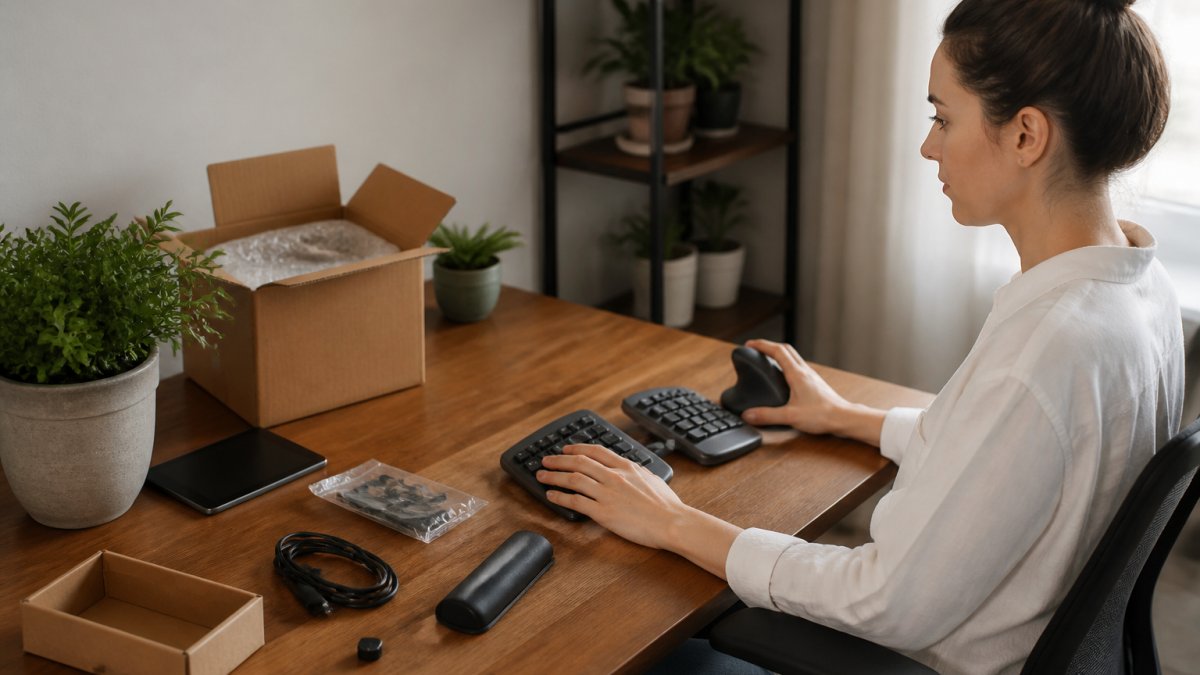
Mistakes That Undo a Good Keyboard and Mouse Purchase
Spending more does not guarantee comfort. These are the mistakes we see most often, and each one quietly cancels out a good purchase.
| Mistake | What It Costs You | The Fix |
|---|---|---|
| Buying before measuring hand size | Mouse too large or too small, causing grip strain | Measure palm length and width first |
| Skipping the chair and monitor | Wrist pain persists despite a new keyboard | Fix desk and chair height before devices |
| Choosing the most aggressive layout first | Weeks of slow typing, then abandonment | Start with curved or standard, upgrade later |
| Leaving backlighting on | Frequent recharging, mid-task dropouts | Disable backlight or buy wired |
| Ignoring palm support | Wrist extension returns within a week | Add a wrist rest sized to the keyboard |
| Never adjusting anything | Default settings rarely fit anyone | Remap keys, set DPI, tilt the keyboard |
The pattern behind all six: people treat the device as the solution when the setup is the solution. A keyboard works only when the desk, chair, and monitor let it.
Setting Up Your Home Workspace for Long-Term Comfort
Long-term comfort comes from small adjustments repeated over months, not one perfect purchase.
Start with these habits:
- Change position every 30 to 45 minutes. Stand, stretch, or shift your grip. Static posture causes more strain than any single device.
- Alternate input devices. Switching between a vertical mouse and a trackball, or between two keyboard angles, spreads the load.
- Recheck your setup seasonally. A new chair, a standing desk converter, or a laptop swap changes the geometry.
A common mistake is treating ergonomics as a one-time project. It is a maintenance habit. The device you buy today should still fit the desk you sit at next year, which is why adjustable features beat fixed ones.
Your body gives you feedback long before it gives you pain, and the smartest move is to build a workspace that responds to it.
Frequently Asked Questions
What is the best ergonomic keyboard and mouse for remote work?
There is no single best pick, because fit depends on your hand size, grip style, and typing habits. Start by measuring your hand from wrist to fingertip and noting whether you use a palm, claw, or fingertip grip. A split or curved ergonomic keyboard suits long typing sessions, while a vertical or trackball mouse helps if your wrist aches from a flat mouse. Try one change at a time so you can tell what is actually helping.
Are ergonomic keyboard and mouse combos worth it?
Combos are worth it when the keyboard and mouse in the set both fit your hands and posture. The advantage is a single wireless receiver, one battery system, and matched key feel. The risk is that a bundle forces a compromise on one of the two devices. Check the keyboard layout and the mouse grip style separately before buying a set, and only commit if both suit how you work.
Is a vertical mouse better for remote work?
A vertical mouse for remote work puts your hand in a handshake position, which keeps the wrist straighter and can ease strain for people who feel discomfort with a flat mouse. It is not automatically better for everyone. Small hands may find larger vertical models hard to grip, and precision tasks like design work can take adjustment. Try one for a week of light use before relying on it full-time.
How should I position my keyboard and mouse at a desk?
Set your keyboard so your elbows sit near 90 degrees and your forearms stay level with the desk, with wrists straight rather than bent up or down. Keep the mouse close to the keyboard so you are not reaching sideways, and use a keyboard tray if your desk is too high. Your monitor should sit at eye level so you are not leaning forward, which pulls your shoulders and wrists out of position.
