


 Link label

How to Set Up a Monitor for Ergonomic Comfort
Table of Contents
- Why Monitor Placement Matters for Your Posture and Health
- Step 1: Start With Your Chair, Desk, and Seated Posture
- Step 2: Get Monitor Height for Ergonomics Right
- Step 3: Set Monitor Distance From Eyes and Viewing Angle
- Step 4: Reduce Monitor Glare and Eye Strain
- Step 5: Optimize Dual Monitor Ergonomic Setup
- Troubleshooting: Common Discomfort Signals and How to Reassess
- Frequently Asked Questions
Last Updated: October 4, 2026
Why Monitor Placement Matters for Your Posture and Health
Poor monitor placement causes workplace discomfort and affects neck, shoulders, and back alignment.
Misaligned monitors force your neck forward, shoulders upward, and lower back to round, compounding into chronic tension throughout the day.
Step 1: Start With Your Chair, Desk, and Seated Posture
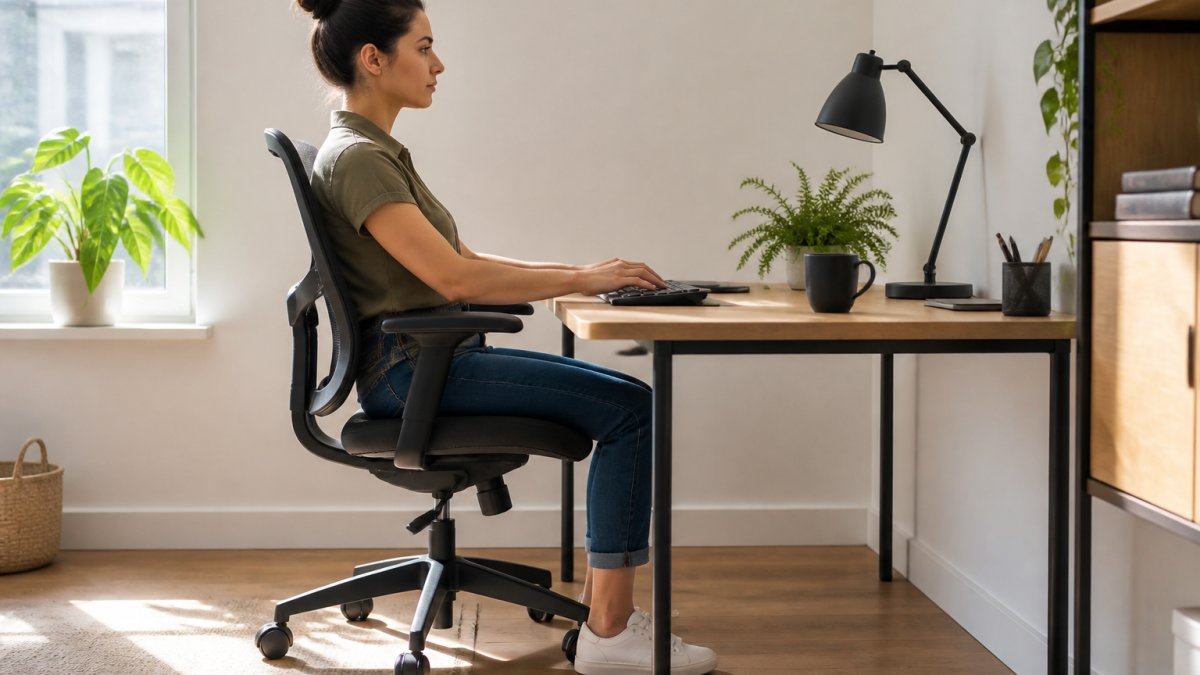
Establish baseline posture first. Sit with feet flat on the floor, knees at 90 degrees, thighs parallel to the ground. Add a footrest if feet dangle.
Check desk height: elbows should rest at 90 degrees when arms hang naturally. Adjust desk or chair if needed.
Sit back with your back against the backrest and shoulders relaxed. This neutral posture is your anchor point for monitor alignment.
Step 2: Get Monitor Height for Ergonomics Right
Monitor height for ergonomics follows one rule: your eyes should align slightly below the top of the screen when looking straight ahead. The center should sit roughly 2 to 3 inches below the top of your head, matching a natural 15 to 20 degree downward gaze.
Use this adjustment method:
- Place your monitor on a stand, arm, or desk riser
- Sit in your normal working position
- Look straight ahead without moving your head
- Your gaze should land on the upper third of the screen
- Adjust the monitor up or down until this alignment feels natural
Most 24-inch monitors need their center 18 to 24 inches above desk level; larger screens may sit slightly higher depending on your eye level.
Step 3: Set Monitor Distance From Eyes and Viewing Angle
Your eyes should be 20 to 28 inches from the screen (arm's length with elbow bent at 90 degrees). This range balances readability with relaxed eye focus.
Tilt the screen 10 to 20 degrees upward from vertical to reduce glare and maintain comfortable viewing without forcing your head back.
Verify alignment: sit naturally with eyes on the upper portion of the screen, positioned directly in front without neck twisting. This neutral positioning is the foundation of how to set up a monitor for ergonomic comfort.
Step 4: Reduce Monitor Glare and Eye Strain
Glare forces eyes to work harder and creates fatigue. Reducing glare through physical placement and display settings prevents eye strain and forward head posture.
Physical Glare Control
Position your monitor perpendicular to windows and light sources to prevent glare and eye strain.
If you cannot move your desk away from a window, use these tactics:
- Close blinds or curtains during peak sunlight hours
- Use a monitor hood or anti-glare filter
- Position a task lamp behind your monitor, angled away from your eyes
- Tilt your screen slightly downward to reduce reflected light
Display Settings for Readability and Comfort
Physical positioning is only half the solution. Your monitor's brightness, contrast, and text scaling directly affect how hard your eyes work and whether you lean forward to read.
Adjust screen brightness to match ambient room light. If your screen glows brighter than the wall behind it, reduce brightness. If you squint, increase it. Enable auto-brightness if available.
Increase font size and display scaling to prevent eye strain. A common starting point for 24-inch monitors is 125% scaling; adjust based on screen size and distance.
Increase contrast between text and background until text appears sharp and distinct.
Enable your monitor's blue light filter 1 to 2 hours before bed to prevent sleep disruption. Use Windows "Night Light" or macOS "Night Shift" if your monitor lacks this feature.
Every 20 minutes, look at something 20 feet away for 20 seconds to reduce digital eye strain. Set a timer to remind you.
Step 5: Optimize Dual Monitor Ergonomic Setup
Multi-monitor setups are common, but the ergonomic principles differ depending on whether you're using two desktop monitors, a laptop with an external monitor, or a mixed configuration.
Dual Desktop Monitors
Position your primary monitor directly in front of you. Place the secondary monitor at 30 to 45 degrees from center at the same height to minimize neck rotation and vertical eye movement.
Arrange monitors in a semi-circle: primary directly in front, secondary at 30 to 45 degrees, both at eye level and 20 to 28 inches away. This reduces neck strain compared to side-by-side placement.
Laptop as Primary Device With External Monitor
Many remote workers use a laptop as their primary device and connect an external monitor for extended work. This configuration requires a different approach than dual desktop monitors, because laptop screens sit too low and too close for ergonomic work.
Laptop screens sit too low and close, forcing downward head flexion. Use a laptop stand to elevate the screen to eye level, then connect an external keyboard and mouse.
Place your laptop on a stand at eye level (18 to 24 inches above desk). Connect an external keyboard and mouse. Position the external monitor directly in front at 20 to 28 inches away, slightly below eye level. Use the external monitor as your primary display and the laptop as secondary, positioned to the side.
Laptop stand height: Most adjustable laptop stands range from 4 to 8 inches of elevation. Choose a stand that allows the laptop screen's center to sit at or slightly below your eye level when seated. If your laptop stand doesn't provide enough height, place it on a desk riser or stack of books underneath.
Laptop as Secondary Device
If you use a laptop as a secondary display for reference material, email, or communication tools, position it to the side and slightly lower than your primary monitor.
When a laptop is secondary:
- Position it 30 to 45 degrees from your primary monitor
- Allow it to sit 2 to 4 inches lower than your primary monitor (this is acceptable for a secondary device)
- Keep it at least 20 inches away from your eyes
- Use an external keyboard and mouse for your primary work, not the laptop keyboard
Ultrawide Monitors as an Alternative
Some users choose a single ultrawide monitor (34 to 49 inches) instead of two separate screens. An ultrawide can reduce neck rotation compared to dual monitors positioned side by side, but it requires careful positioning:
- Position the ultrawide directly in front of you
- The center of the screen should be at or slightly below eye level
- Maintain 20 to 28 inches distance from your eyes to the center of the screen
- Divide the screen into logical zones (left, center, right) and avoid constantly turning your head to view the far edges
- If you find yourself rotating your neck more than 30 degrees to view content on either side, consider repositioning your chair or using a monitor arm that allows you to angle the screen slightly
Troubleshooting: Common Discomfort Signals and How to Reassess
If you still feel discomfort after adjusting your setup, your body is telling you something needs refinement. Learn to read these signals.
Neck pain or stiffness: Your monitor is likely too high or positioned off to one side. Reassess height first, the top of your screen should be at or slightly below eye level. Check that the monitor is directly in front of you, not angled left or right.
Shoulder or upper back tension: This often signals that your monitor is too far away, causing you to lean forward. Move it closer, aim for 20 to 28 inches from your eyes. Also check your chair height. If your elbows are above 90 degrees, your shoulders are working harder than necessary.
Eye strain or headaches: Glare, screen brightness, or distance are likely culprits. Reduce glare by repositioning relative to windows. Lower screen brightness to match your room lighting. Verify your distance is 20 to 28 inches, not closer.
Lower back pain: This usually relates to chair height and desk height, not monitor position. Verify your feet are flat on the floor and your knees are at 90 degrees. Your desk should allow your elbows to rest at 90 degrees when seated. Add lumbar support if needed.
Reassess your setup every few weeks. As you adjust to proper ergonomics, your body may need fine-tuning. Small changes compound into significant comfort gains over time.
Proper monitor positioning is one of the highest-impact adjustments you can make to your remote workspace. When your screen sits at the right height, distance, and angle, your body stays in neutral alignment, and that's when real comfort happens. We believe that sustainable wellness starts with your environment. Our curated collection of ergonomic equipment and wellness tools helps you build a workspace that supports your body throughout the day. Explore our selection of monitor stands, desk risers, and posture-support accessories designed to help you achieve lasting comfort and maintain your intentional wellness routine.
| Setup Component | Ideal Position | Impact on Posture |
|---|---|---|
| Monitor height | Top slightly below eye level (15-20° downward gaze) | Prevents neck strain and forward head posture |
| Monitor distance | 20-28 inches (arm's length) | Reduces eye strain and forward lean |
| Monitor angle | Directly in front, perpendicular to windows | Eliminates glare and maintains neutral neck alignment |
| Chair height | Feet flat, knees at 90 degrees | Stabilizes spine and reduces lower back load |
| Desk height | Elbows at 90 degrees when arms hang naturally | Prevents shoulder elevation and hunching |
| Secondary monitor | 30-45 degree angle, same height as primary | Reduces excessive neck rotation |
Frequently Asked Questions
How high should my monitor be for good posture?
Position the top of your monitor at or slightly below eye level when seated. The center of the screen should be 15-20 degrees below horizontal eye level. This angle reduces neck strain and encourages a neutral spine. If your monitor is too high, you'll tilt your head back; too low forces your neck forward. Use a monitor arm, stand, or books to adjust height until the screen feels comfortable for extended viewing.
What is the ideal monitor distance from eyes?
Keep your monitor 20-28 inches away, roughly an arm's length from your seated position. This distance reduces eye strain and allows your eyes to focus without excessive accommodation. If text appears blurry at this distance, increase font size or screen resolution rather than moving closer. Closer viewing strains the ciliary muscles in your eyes; farther distances make reading difficult and encourage leaning forward, which compromises posture.
How do I set up two monitors ergonomically?
Place your primary monitor directly in front of you at the distances and angles described above. Position the secondary monitor at a 30-45-degree angle to the side, or slightly further away. Arrange both screens so your head turns naturally without twisting your torso. Keep the top edges level to minimize vertical head movement. If you use the secondary screen less frequently, position it further to the side; if equally, arrange them in a gentle semi-circle to reduce neck rotation.
How can I reduce eye strain when using a computer monitor?
Control glare by positioning your monitor perpendicular to windows and light sources, or use a monitor hood or anti-glare filter. Adjust screen brightness to match your environment. Use the 20-20-20 rule: every 20 minutes, look at an object 20 feet away for 20 seconds to relax your eyes. Blink deliberately, screen time reduces blink rate, drying eyes. Increase text size and use high-contrast settings if needed. Clean your screen regularly to remove dust that scatters light and increases perceived glare.