


 Link label

Ergonomic Accessories for Small Home Office Spaces
Last Updated: October 23, 2026
Quick Summary
Ergonomic accessories for small home office spaces reduce physical strain without consuming precious desk real estate by keeping your monitor at eye level, positioning your keyboard and mouse at elbow height, and adding lumbar support. These strategic investments protect your spine, wrists, and neck from repetitive stress while maintaining productivity in tight quarters.
- Position your monitor 20-26 inches from your eyes at or slightly below eye level to prevent neck strain.
- Use a monitor riser with storage underneath to gain vertical space while improving posture simultaneously.
- Add a compact lumbar cushion and wrist rests to prevent lower back and wrist strain without consuming desk space.
- Keep your most-used tools within 12 inches of your body in your primary work zone.
- Start with monitor height adjustment as your highest-impact, lowest-cost ergonomic improvement.
Table of Contents
- Why Ergonomic Accessories Matter in a Small Home Office
- Monitor Stands and Adjustable Displays for Small Desks
- Ergonomic Keyboards and Mice That Save Space
- Lumbar Support and Wrist Rests Without Clutter
- Small Desk Organization Ideas to Maximize Ergonomic Setup
- How to Make a Home Office More Ergonomic on a Budget
- Common Mistakes That Undermine Your Ergonomic Setup
- Conclusion
- Frequently Asked Questions
Why Ergonomic Accessories Matter in a Small Home Office
Working from home doesn't mean sacrificing comfort. Many remote workers experience back pain, neck strain, and wrist discomfort by mid-afternoon, simply because their workspace wasn't designed with ergonomics in mind. The challenge intensifies when you're working in a small space, every accessory must earn its place.
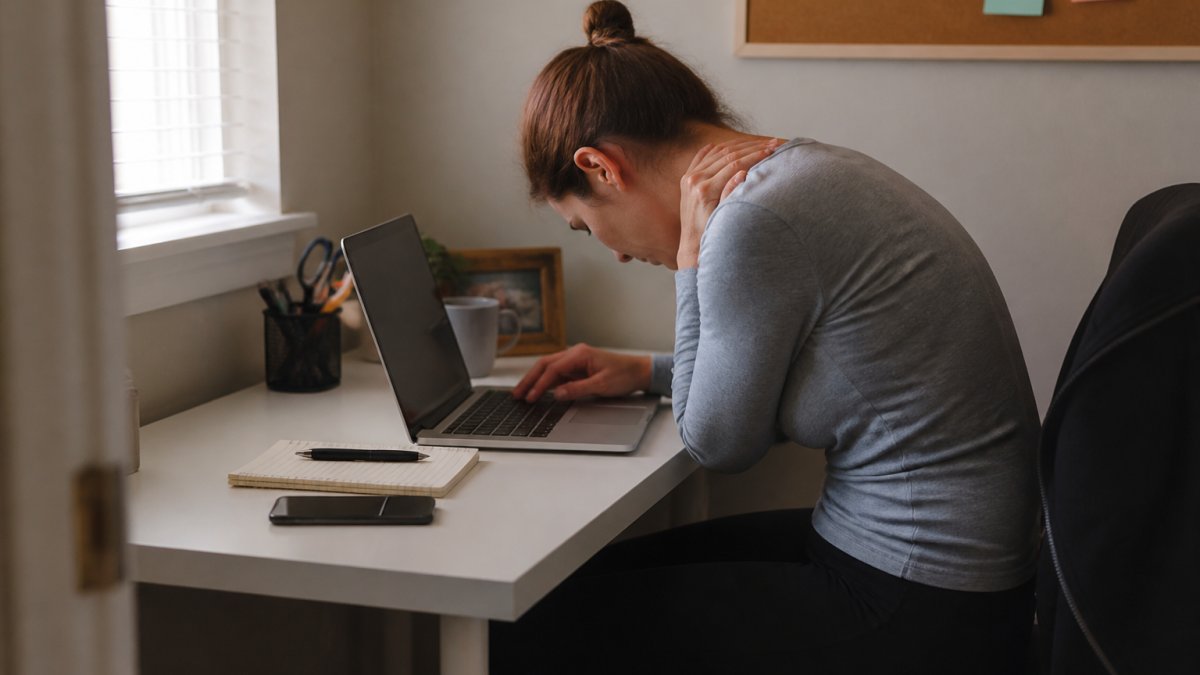
Ergonomic accessories for small home office spaces solve a real problem: they reduce physical strain without consuming precious desk real estate. When positioned correctly, these tools protect your spine, wrists, and neck from the repetitive stress that builds throughout the day. The difference between a setup that causes pain and one that supports your body often comes down to a few strategic investments.
The key is selecting items that address your specific pain points while respecting your space constraints. Small changes can create measurable relief.
Monitor Stands and Adjustable Displays for Small Desks
Your monitor height determines everything about your posture. When the screen sits too low, you crane your neck downward for hours. Too high, and you strain upward. The ideal position places the top of your screen at or slightly below eye level when you're sitting upright.
A monitor stand for small desk setups doesn't need to be elaborate. Many effective options measure just 4-6 inches tall and take up minimal footprint.
Look for stands with non-slip rubber feet to prevent your monitor from sliding during adjustments. Adjustable monitor arms offer even more flexibility for compact spaces, allowing you to tilt, swivel, and extend your screen without taking up additional desk real estate.
When evaluating options, measure your current desk depth. A stand shouldn't push your monitor so far back that you lose functional workspace.
Consider best monitor risers for better neck alignment to understand specific recommendations for your setup. You can also explore detailed monitor setup guidance to ensure your display height and distance are optimized for your body type and desk dimensions.
Ergonomic Keyboards and Mice That Save Space
Standard keyboards force your wrists into an unnatural angle. Your hands rest flat on the desk, which means your wrists bend upward slightly as you type. Over hours, this repetitive position creates tension and strain.
For small desks, compact ergonomic keyboards exist that don't sacrifice functionality. Many measure 12-14 inches wide, matching the footprint of standard keyboards while providing the ergonomic benefits.
Your mouse matters just as much as your keyboard. A standard mouse forces you to grip and rotate your forearm, which contributes to wrist and elbow strain. An ergonomic mouse, whether vertical, contoured, or trackball-style, supports your hand in a neutral position.
When space is tight, consider a keyboard-mouse combo that shares one compact footprint. Some designs integrate a small trackpad into the keyboard itself, eliminating the need for a separate mouse entirely.
The supporting keyword ergonomic keyboard and mouse options span multiple styles, but the principle remains consistent: your wrists should feel relaxed, not bent or twisted, during your entire workday.
Lumbar Support and Wrist Rests Without Clutter
Your lower back bears the weight of your upper body throughout the day. Without proper support, your spine rounds forward, a posture that strains the discs and muscles in your lumbar region.
For small spaces, a compact lumbar cushion (typically 12-14 inches tall) attaches to your existing chair without adding bulk. Memory foam options mold to your spine's shape, providing personalized support.
Wrist rests serve a different but equally important function. They support your wrist while typing or using a mouse, preventing the repetitive strain that builds from hours of work.
The challenge in small spaces is preventing wrist rests from consuming desk real estate.
OSHA ergonomic guidelines for office workstations recommend that wrist rests be used during breaks rather than while actively typing, as they're designed to support your wrist position between typing bursts.
Prevent neck pain while working remotely by combining lumbar support with proper monitor height. Explore neck pain prevention strategies to understand how these elements work together in your overall setup.
Small Desk Organization Ideas to Maximize Ergonomic Setup
A cluttered desk forces you to reach, twist, and contort to access items you use frequently. This constant repositioning creates unnecessary strain on your shoulders, back, and neck.
Start by identifying what you actually use during your workday. Your keyboard, mouse, monitor, and writing surface should occupy your primary work zone, the area directly in front of you within 12 inches of your body.
Vertical storage transforms small spaces. Wall-mounted shelves, pegboards, and hanging organizers move items off your desk without requiring additional floor space. A monitor riser with storage underneath, as mentioned earlier, consolidates storage and elevation into one accessory.
Cable management deserves attention because tangled cables create visual clutter and physical obstacles. Use clips, sleeves, or spiral wraps to bundle cables along your desk edge or the back of your monitor arm.
Desk organizers with multiple compartments keep supplies sorted without consuming excessive surface area. Look for designs that fit under your monitor or to the side of your keyboard, spaces that would otherwise go unused.
A small footrest or balance board positioned under your desk engages your lower body without requiring dedicated desk space. These tools promote subtle movement throughout your day, reducing the strain that comes from static sitting. Learn daily movement exercises for remote workers to understand how movement complements your ergonomic setup.
How to Make a Home Office More Ergonomic on a Budget
You don't need to spend hundreds of dollars to create an ergonomic workspace. Many effective solutions cost under fifty dollars, and the highest-impact changes often come first.
Start with your monitor height. A simple monitor riser, even a stack of books or a basic plastic stand, costs nothing to very little while delivering immediate postural improvement.
Next, address your keyboard and mouse position. If your current keyboard and mouse are functional, you can improve your posture simply by repositioning them.
A basic lumbar cushion costs significantly less than an ergonomic chair and addresses the most common pain point for remote workers.
Wrist rests represent another low-cost addition. A basic gel wrist rest for keyboard use and another for mouse use typically cost under thirty dollars combined.
Document holders and monitor arms represent slightly larger investments but still cost far less than replacing furniture.
The most important principle: prioritize by impact. Fixing your monitor height matters more than having a fancy keyboard. Proper lumbar support matters more than having the perfect mouse.
Common Mistakes That Undermine Your Ergonomic Setup
Even with quality accessories, common setup mistakes eliminate their benefits. Understanding these pitfalls helps you avoid them.
Placing your monitor too far away. Many people position their screen at arm's length or beyond, thinking distance reduces eye strain. In reality, this forces you to lean forward or crane your neck to see clearly.
Ignoring your chair height relative to your desk. Your ergonomic accessories can only do so much if your chair sits too high or too low. Too low, and your knees rise above your hips, straining your lower back. Improve your posture while working on a laptop to understand how chair height integrates with your overall setup.
Using wrist rests while typing. Many people rest their wrists on wrist rests while actively typing, which actually increases strain by preventing natural wrist movement. Wrist rests should support your wrists during breaks, not during typing.
Neglecting movement between accessories. A perfect ergonomic setup only works if you actually use it correctly. Many people position their monitor perfectly, then lean forward and crane their neck anyway, defeating the purpose.
Overloading your desk with accessories. Some people add so many ergonomic tools that their workspace becomes cramped and unusable. Each accessory should solve a specific problem.
Several setup errors can eliminate the benefits of your ergonomic accessories, even when they are high quality.
| Mistake | Problem | Solution |
|---|---|---|
| Monitor too far away | Forces leaning forward or neck craning | Position screen 20-26 inches from eyes |
| Chair height misaligned with desk | Feet dangle or knees rise above hips | Elbows should bend at roughly 90 degrees |
| Using wrist rests while typing | Increases strain by preventing wrist movement | Support wrists during breaks, not typing |
| Neglecting posture awareness | Perfect setup defeated by poor habits | Maintain conscious awareness of posture |
| Overloading desk with accessories | Workspace becomes cramped and unusable | Add only accessories that solve problems |
Conclusion
Creating an ergonomic workspace in a small home office is entirely achievable. Start with monitor height, address your keyboard and mouse position, add lumbar support, and organize strategically. These foundational changes prevent pain and protect your long-term health without requiring major investments or renovations.
At thewellbeingshop.com, we understand that wellness isn't just about fitness, it's about building sustainable routines that work within your real life. An ergonomic home office is foundational to that vision. Explore our collection and discover how intentional workspace design can transform your daily experience.
Frequently Asked Questions
What are the most important ergonomic accessories for a small home office?
The essentials are a monitor stand to bring your screen to eye level, an ergonomic keyboard and mouse to maintain neutral wrist position, lumbar support for your chair, and a footrest if your feet don't touch the floor. In tight spaces, prioritize items that address multiple strain points: a monitor arm that doubles as storage, a compact keyboard tray, or a cushion that adds back support without taking up floor space. Start with what causes you the most discomfort, usually the neck, lower back, or wrists, and build from there.
How can I improve my posture while working at a small desk?
Position your monitor at eye level using a stand or arm; your top of screen should align with your eyes when you sit upright. Keep your elbows at 90 degrees and wrists neutral when typing. Use a lumbar cushion to support the natural curve of your spine. Place your feet flat on the floor or a footrest to avoid dangling legs that strain your lower back. Every 30 minutes, stand and stretch for 2 minutes. These adjustments prevent the slouch that develops when desk space feels cramped.
Which ergonomic accessories save the most space on a small desk?
Vertical solutions save the most desk real estate: monitor arms that clamp to the desk edge, wall-mounted shelves for CPU holders, and under-desk keyboard trays that tuck away when not in use. Choose a compact ergonomic mouse instead of a full-size keyboard pad. Cable management clips and adhesive trays keep wires off the work surface. A slim footrest that slides under the desk takes up zero usable space. Prioritize multi-function pieces, like a monitor stand with built-in storage, over single-purpose accessories.
Do I need a monitor stand if I work from a small desk?
Yes. Without a monitor stand, most people position screens too low, forcing the neck into a forward bend that causes strain by midday. A stand or arm brings the screen to eye level, reducing neck and shoulder tension significantly. For small desks, choose a compact stand or a clamp-on monitor arm that frees up surface area underneath. Even a basic 4-6 inch riser is better than no elevation; your neck will thank you within days of adjusting screen height.
