


 Link label

Best Monitor Risers for Better Neck Alignment
Last Updated: October 22, 2026
Quick Summary
The best monitor risers for better neck alignment position your screen at eye level so your neck stays neutral and your shoulders relax. Your eyes should meet the top third of your monitor when sitting normally, which minimizes strain on your cervical spine and reduces muscle fatigue that leads to headaches and shoulder pain.
- Measure your seated eye height, current screen center, and calculate the gap your riser must close before purchasing.
- Choose a riser type based on your height gap: 0-2 inches for low-profile, 2-4 inches for standard fixed, 4-8 inches for adjustable stands, and 8+ inches for monitor arms.
- Monitor should sit at arm's length away, roughly 20-26 inches from your eyes, positioned directly in front of you.
- Stability is critical: select risers with wide weighted bases, non-slip feet, and at least 30-40 pound weight capacity.
- Test your ideal height for a full week using books or boxes before buying a permanent riser to validate the correct position.
Table of Contents
- Why Monitor Height Matters for Neck Alignment
- Monitor Riser Height for Ergonomics: Finding Your Ideal Position
- Adjustable Monitor Stand for Posture: Static vs. Dynamic Solutions
- Monitor Arm vs. Monitor Riser: Which Works Best for You
- Key Features That Prevent Neck Pain and Shoulder Discomfort
- Setting Up Your Workstation for Long Work Sessions
- Mistakes to Avoid When Choosing a Monitor Riser
- Frequently Asked Questions
Why Monitor Height Matters for Neck Alignment
Your monitor position directly affects your spine. When your screen sits too low, you crane your neck downward for hours.
The opposite problem is equally common. A monitor placed too high forces you to look up constantly. This strains the back of your neck and shoulders.
The goal is simple: your eyes should meet the top third of your monitor when you're sitting in your normal working position.
Monitor Riser Height for Ergonomics: Finding Your Ideal Position
Generic advice like "raise your monitor to eye level" fails most people because it skips the variables that actually determine the right height: your seated eye height, your chair's height range, your monitor's physical dimensions, and your viewing distance. A riser that works for a 5'4" user on a low task chair is usually wrong for a 6'2" user on a drafting stool. This section turns those variables into a repeatable measurement process so you can pick a riser height instead of guessing.
Step 1: Measure Your Seated Eye Height
Sit in the chair you actually use, feet flat, back supported, shoulders relaxed. Have someone hold a tape measure or use a mirror to find the vertical distance from the floor to the center of your pupils. Most seated adults fall between 44 and 52 inches, but the number matters more than the range. Write it down. This is your target screen-center height.
Step 2: Measure Your Current Screen Center
With your monitor on its existing base, measure from the floor to the center of the screen. Subtract that number from your seated eye height. The difference is the height gap your riser must close. A 3-inch gap calls for a low-profile riser; a 6-inch gap calls for a taller platform or an adjustable stand. Do not round down. Even a 2-inch shortfall keeps your neck flexed forward.
Step 3: Adjust for Monitor Size and Viewing Distance
The top-third rule is a starting point, not a law. Larger monitors and closer viewing distances push the ideal screen center slightly lower because the top of the screen occupies more of your vertical field of view. As a practical rule of thumb:
- 24-inch monitor at 20-24 inches: aim for screen center at or just below seated eye height.
- 27-inch monitor at 24-28 inches: aim for screen center roughly 1-2 inches below seated eye height.
- 32-inch or larger at 28-32 inches: aim for screen center 2-3 inches below seated eye height, and tilt the screen back slightly.
These are starting points. Fine-tune by sitting in your normal posture and checking whether your chin is level and your neck feels relaxed after 10 minutes.
Step 4: Match the Gap to a Riser Type
Once you know your gap, choose the product category that fits it:
- 0-2 inches: a low-profile wooden or metal riser, or a monitor stand with a fixed 1-2 inch lift.
- 2-4 inches: a standard fixed riser or a height-adjustable stand with a 4-inch range.
- 4-8 inches: an adjustable stand or a monitor arm with a gas spring or counterbalance.
- 8+ inches: a monitor arm is usually the only stable option; stacking risers or books creates a tipping hazard.
Step 5: Account for Bifocals and Progressive Lenses
If you wear bifocals or progressive lenses, your effective reading zone sits lower in the lens. Many wearers instinctively drop their chin to find the sweet spot, which reverses the benefit of raising the monitor. A common adjustment is to lower the screen center by 1-2 inches relative to the standard recommendation, or to use a single-vision computer prescription. Test both before committing to a riser height.
Common Height Mistakes That Worsen Neck Strain
The most frequent error is stacking monitors on books or boxes without securing them. Unstable risers create a safety hazard and force you to stay tense to prevent the screen from shifting.
Another mistake is raising the monitor too high. This isn't uncommon among tall workers who overcompensate.
A third pitfall is ignoring the viewing distance. Even if your monitor is at the correct height, sitting too close or too far away compromises your posture.
A fourth, less obvious error is failing to re-measure after changing chairs.
Adjustable Monitor Stand for Posture: Static vs. Dynamic Solutions
A static riser holds your monitor at one fixed height. An adjustable stand lets you change the height throughout the day.
Static risers are simple, affordable, and stable. They work well if you've calculated your ideal height accurately and your workspace remains consistent.
Adjustable stands offer versatility. You can raise your monitor for standing work, then lower it when you return to your chair.
The trade-off is cost and complexity. Adjustable stands typically cost more and require more desk space.
For most remote workers, an adjustable stand can be a valuable investment.
Monitor Arm vs. Monitor Riser: Which Works Best for You
A monitor riser is a platform that sits on your desk and elevates your screen. A monitor arm is a mechanical arm that attaches to your desk and holds the monitor in space. Both solve the height problem, but they approach it differently.
When to Choose Each Option
Choose a monitor riser if you have limited desk space or prefer a simple, low-cost solution. Risers are easy to set up and don't require drilling or permanent desk modifications.
Choose a monitor arm if you need full-motion adjustment and want to reclaim desk surface area. Arms let you move your monitor left, right, forward, and backward.
Monitor arms also free up storage space under your monitor. Many risers have built-in shelving for keyboards or office supplies, but a monitor arm eliminates that compromise entirely.
The downside of monitor arms is installation complexity and weight capacity limits. Not all desks can support the clamping mechanism.
Key Features That Prevent Neck Pain and Shoulder Discomfort
The best monitor risers for better neck alignment combine three qualities: precise height adjustment, rock-solid stability, and thoughtful tilt control.
Stability and Weight Capacity
Your monitor must not shift or wobble. Any movement forces your muscles to compensate, which defeats the purpose of proper positioning.
Check the weight capacity before purchasing. Most modern monitors weigh 15-25 pounds. A quality riser should support at least 30-40 pounds to handle your monitor plus any accessories you attach.
Materials matter too. Wood construction offers both stability and aesthetic appeal. Metal risers are durable and often lighter. Plastic risers are affordable but less stable under heavy loads.
Tilt and Screen Angle Control
Your screen should tilt slightly upward or downward to match your eye level. A riser with adjustable tilt lets you fine-tune this angle. This prevents the common mistake of looking straight ahead at a screen that's tilted downward, which rounds your upper back.
Some risers offer fixed tilt angles. Others use friction hinges that let you set any angle you prefer. The adjustable option gives you more control, especially if you transition between sitting and standing throughout your day.
Setting Up Your Workstation for Long Work Sessions
Proper monitor height is one piece of a larger ergonomic puzzle. Your complete workstation setup determines whether you stay comfortable through an eight-hour day.
Viewing Distance and Screen Position
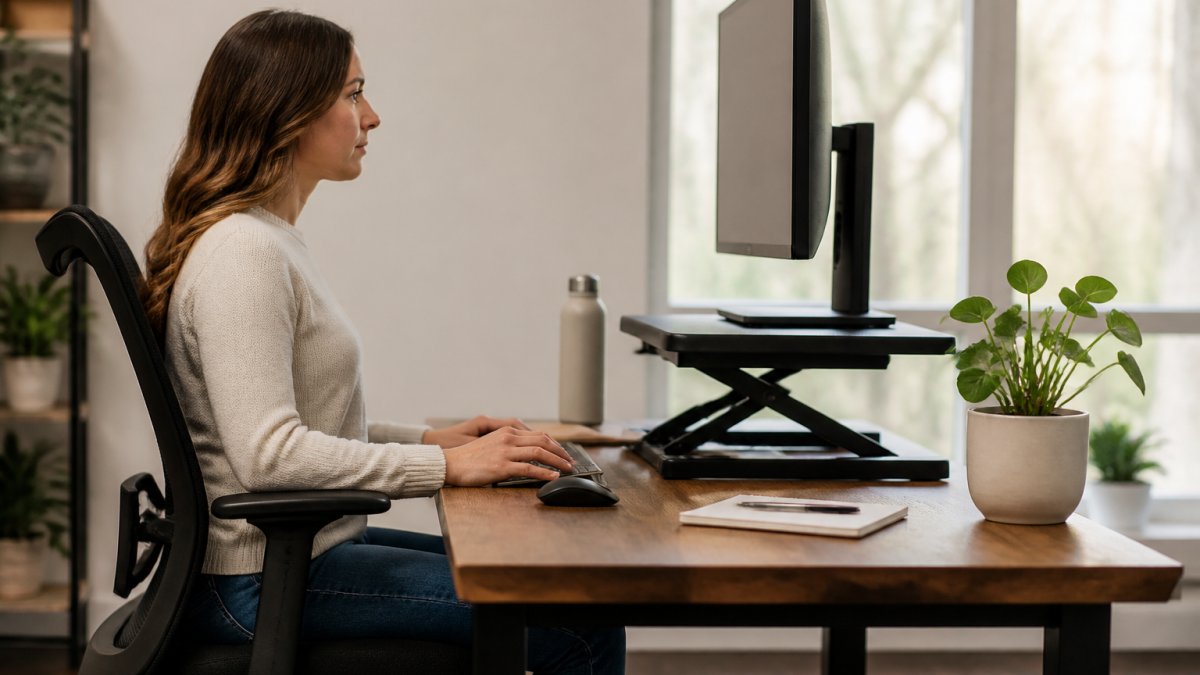
Your monitor should sit at arm's length away, roughly 20-26 inches from your eyes. This distance reduces eye strain and prevents you from leaning forward to read text.
The horizontal position matters as well. Your monitor should be directly in front of you, not off to one side.
Reducing Eye Strain While Protecting Neck Alignment
Eye strain and neck strain are connected. When your eyes work hard to see your screen, you unconsciously move your head closer, which strains your neck.
Ensure your screen brightness matches your environment. Too bright, and you'll squint. Too dim, and you'll lean forward. Adjust your monitor's contrast and font size so text is readable without moving your head.
Take regular breaks. Every 20 minutes, look away from your screen at something 20 feet away for 20 seconds (the CDC). This gives your eye muscles a chance to relax and resets your posture.
Mistakes to Avoid When Choosing a Monitor Riser
The wrong riser can make your situation worse, not better.
Aesthetics matter, but function comes first. A beautiful riser that wobbles or doesn't reach your ideal height is a waste of money.
Don't assume your current monitor will fit any riser. Measure your monitor's base width and depth.
Another mistake is buying a riser without testing your ideal height first.
Finally, avoid risers with poor non-slip surfaces. Your monitor will shift if the riser's top surface is smooth.
| Consideration | Why It Matters | What to Check |
|---|---|---|
| Height adjustment | Reaches your ideal eye level | Measure gap from current position to target height |
| Stability | Prevents wobbling and shifting | Wide base, non-slip feet, weight capacity 30+ lbs |
| Tilt control | Aligns screen with your sight line | Adjustable angle or fixed tilt option |
| Desk compatibility | Fits your workspace | Measure available surface area and desk thickness |
| Weight capacity | Supports your monitor safely | Verify monitor weight against riser specs |
Neck pain from poor monitor positioning isn't inevitable.
Frequently Asked Questions
What is the best height for a monitor riser to prevent neck pain?
Position the top of your monitor at or slightly below eye level when seated with neutral posture. For most people, this means raising the monitor 4 to 6 inches above the desk surface. Your eyes should look straight ahead or down at a slight 15-20 degree angle. Exact height depends on your chair height, monitor size, and desk depth. Adjust until your neck feels relaxed after 30 minutes of work, not strained or tilted backward.
How does monitor riser height for ergonomics differ from just stacking books under your monitor?
A proper monitor riser distributes weight evenly, maintains stability, and often includes tilt adjustment for screen angle control. Stacked books create an unstable base that can shift, wobble during typing, and lack the ergonomic features that reduce neck strain. Dedicated risers are designed to hold monitor weight safely while allowing you to fine-tune positioning for your specific height and desk setup.
Are monitor risers better than monitor arms for neck alignment?
Monitor risers are better if you want a simple, stable solution that raises the screen to eye level and frees up desk storage space. Monitor arms offer full-motion adjustment and are ideal if you need to move your screen frequently or share a workspace. For pure neck alignment improvement, either works, the key is proper height and positioning. Choose based on your desk space, how much you move your monitor, and your budget.
Can an adjustable monitor stand for posture actually reduce shoulder and upper-back pain?
Yes, when set up correctly. Shoulder and upper-back pain often stems from reaching forward or looking down at a low screen. An adjustable stand that raises your monitor to eye level and positions it at arm's-length distance reduces forward reaching and prevents slouching. Combined with good chair support and regular movement breaks during work sessions, an adjustable stand can significantly reduce upper-back discomfort over weeks of consistent use.
